
If your VPN feels slow or won’t connect, the quickest fix is usually another server. Happ can test every server in your subscription with one tap, so you don’t have to try them one by one. Tap the speedometer icon, wait a few seconds, and connect to the server with the lowest number that responds. Here’s how to do it and how to read the results.
How to ping all servers in Happ
- Refresh your subscription first. Tap the circular-arrows icon in the subscription header, so you test the latest server list. New servers only appear after a refresh.
-
Tap the speedometer icon next to it. Happ starts testing every server in the subscription.
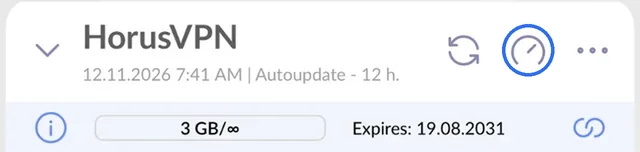
The speedometer icon in the subscription header tests every server at once. -
Wait a few seconds. A result in milliseconds (ms) appears next to each server.
- Connect to the fastest server that responded, usually one with the lowest number.
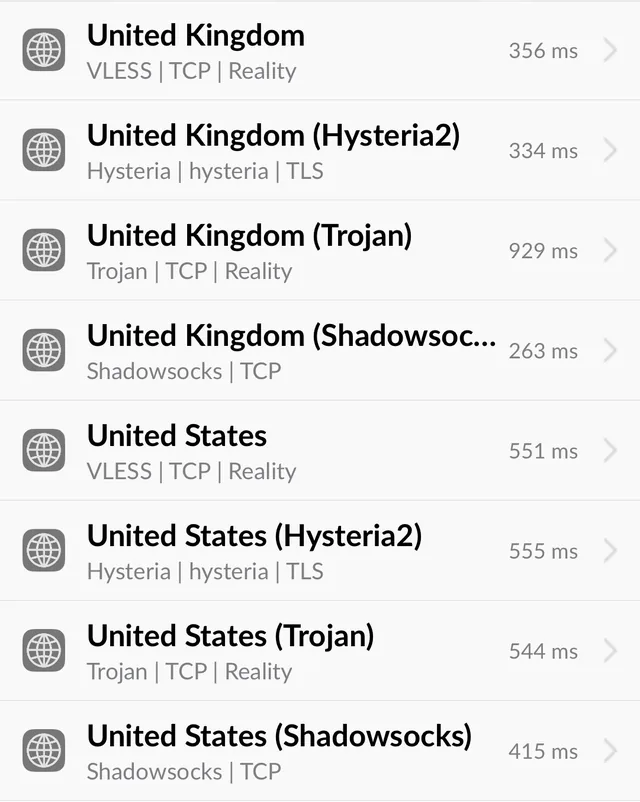
That’s it. If the VPN is already connected, you don’t need to disconnect first.
How to read the results
The number is the time a test connection through that server took, in milliseconds. Lower means the server answers faster.
- The lowest numbers on your list are the servers to try first. Pages open fastest through them, and calls and games feel the most responsive.
- Higher numbers still work for browsing and streaming, but pages take longer to start loading.
- No result, an error or “Timeout” means the server didn’t answer from the network you’re on right now. On restrictive Wi-Fi, this is usually the network blocking that protocol, not a server outage. Pick another protocol in the same country.
Compare numbers within one test rather than against a fixed scale. By default Happ measures through the full VPN path to a test website, so its numbers are higher than a classic ping in a terminal, and they depend on how far you are from the server.
Why one country shows different numbers
In the screenshot above, the four United Kingdom servers range from 263 ms to 929 ms. They are the same location, but each one uses a different protocol: VLESS + REALITY, Hysteria2, Trojan and Shadowsocks. Your network treats each protocol differently. Some networks slow down UDP, which Hysteria2 uses. Others slow down traffic that looks unusual to them.
That’s why it’s worth pinging everything instead of always using the same server. The fastest protocol at home can be the slowest one on hotel Wi-Fi or mobile data.
Which country to choose
As a rule, the closer the server is to you, the faster it is. With HorusVPN:
- Europe: Germany, the Netherlands, Finland or the United Kingdom
- North America: United States
- Australia, New Zealand and Asia: Singapore
If you need a particular country, for example to use a service that only works there, pick that country first. Then choose its fastest protocol from the ping results.
Ping is a quick check, not a speed test
Ping measures how quickly a server responds, not how much data it can move. A server with a low ping usually also downloads fast, but not always. If downloads or video are still slow after you switch, connect and run a speed test, for example on fast.com. Then compare two or three of the best servers from your ping list.
Also, test again whenever you change networks. Results from home Wi-Fi tell you nothing about the airport.
Useful ping settings in Happ
- Check servers on every launch. In Settings → Subscriptions, turn on Ping on Launch. Happ then tests all servers every time you open it.
- Show status instead of numbers. In Settings → Ping you can switch the display from Time (ms) to Status Icon: a green check for available, a red exclamation mark for unavailable.
- Ping method. The default, Via Proxy GET, goes through the real VPN path, so it reflects what you’ll actually get. Leave it as it is unless you have a reason to change it.
Questions
Why does every server show a high ping?
Usually because all the servers are far from you, or the network you’re on is slow or congested. Happ’s default test also includes a full request to a website, so its numbers are higher than a classic ping. Compare the servers against each other, not against a fixed number.
A server shows “Timeout”. Is it down?
Not necessarily. It means the server didn’t respond from your current network. Try another protocol in the same country. If every server times out, check that the internet works without the VPN, and on hotel or airport Wi-Fi complete the login page first. Our guide to VPN problems on hotel and airport Wi-Fi covers this step by step.
Does a lower ping mean faster downloads?
Often, but not always. Ping shows response time, and download speed depends on the route and how busy it is. For large downloads, run a quick speed test on the two or three best servers.
How often should I ping the servers?
Whenever the VPN feels slow and every time you join a new network. If you turn on Ping on Launch, Happ does it for you each time you open the app.
New to Happ? Our Happ setup guide shows how to add a subscription on every platform. HorusVPN gives you six locations with four protocols each in one subscription, so there’s always another server to switch to. Try it free for 3 days or see the plans.